Getting Started
Quickstart
Get started with Shelve in minutes.
Create an account
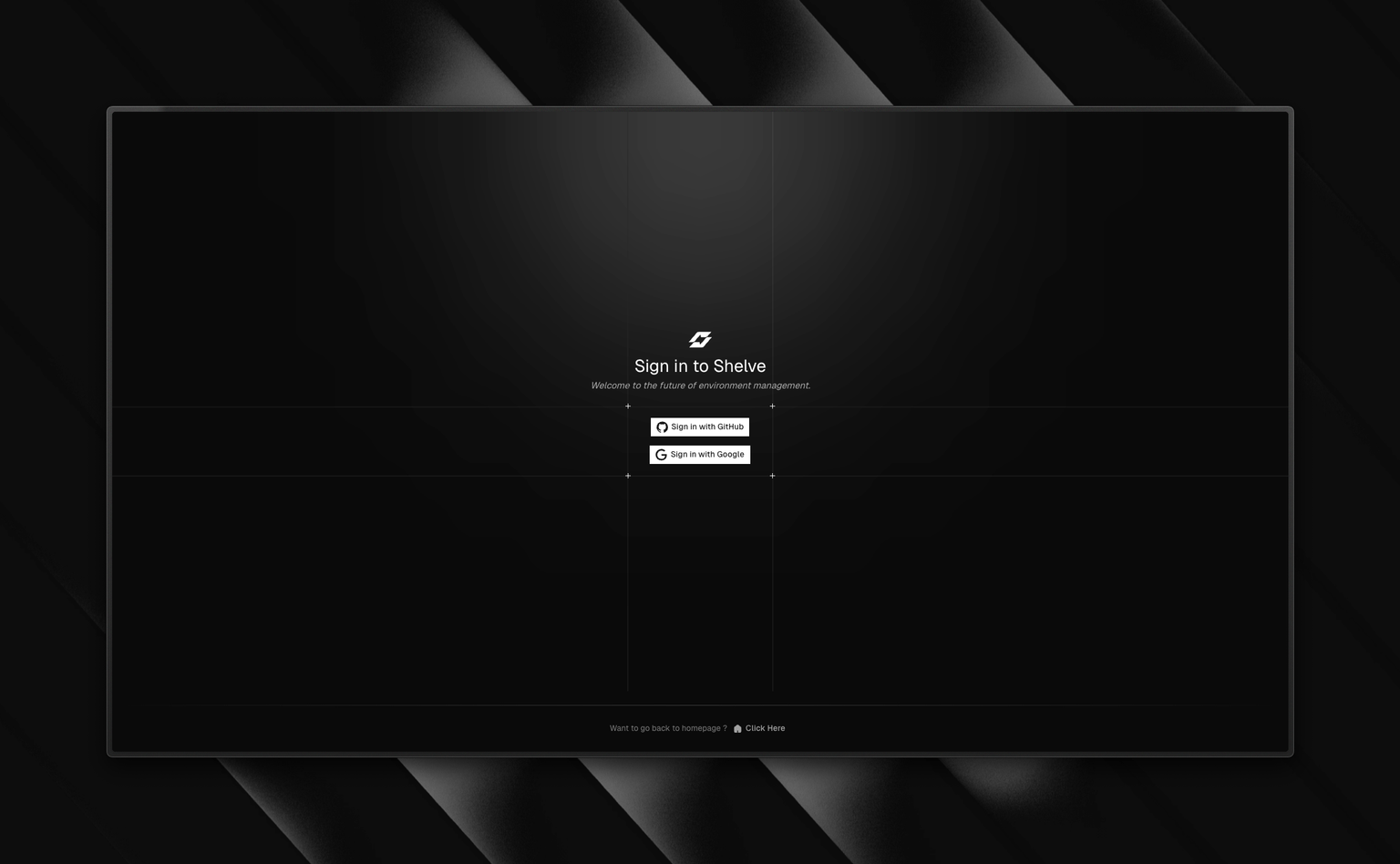
Sign up for a Shelve account on Shelve . Or if you prefer to self-host, follow the instructions in the Self-hosting guide. Once you have an account, complete the onboarding process to create your first team (workspace).
Install the Shelve CLI package
pnpm add -D @shelve/cli
yarn add -D @shelve/cli
npm install -D @shelve/cli
bun add -D @shelve/cli
You can also install the CLI globally using the
-g / --global flag of your package manager.Connect the CLI to your account
Run the following command in your terminal:
terminal
shelve login
This opens your browser so you can sign in to Shelve and authorize the CLI. Shelve creates a revocable CLI token automatically. For CI or scripts, use a scoped API token with SHELVE_TOKEN or shelve login --token "$SHELVE_TOKEN" instead.
Before running the shelve login command, you can set the URL of your self-hosted instance in a manually created shelve.json file in the root of your project. The file should look like this:
shelve.json
{
  "url": "https://your-instance-url.com"
}
No, the CLI only supports one account at a time. If you need to switch accounts, you will need to log out and log back in with the new account.
Yes. Create a scoped, expiring API token and expose it as
SHELVE_TOKEN in your CI secrets. The CLI reads it directly — no shelve login needed. Pair it with shelve run -- <your command> to inject variables without writing a .env file on the runner.If you forget your token, you can always generate a new one in your account settings on the Shelve App.
You can now start using the CLI to manage your secrets. Check out the CLI documentation for more information.